📱 MOBIKO PWA – How Is the MOBIKO App Structured and What Do the Sections Mean?
🏠 Home Screen of the MOBIKO App – What Do the Different Sections Mean?
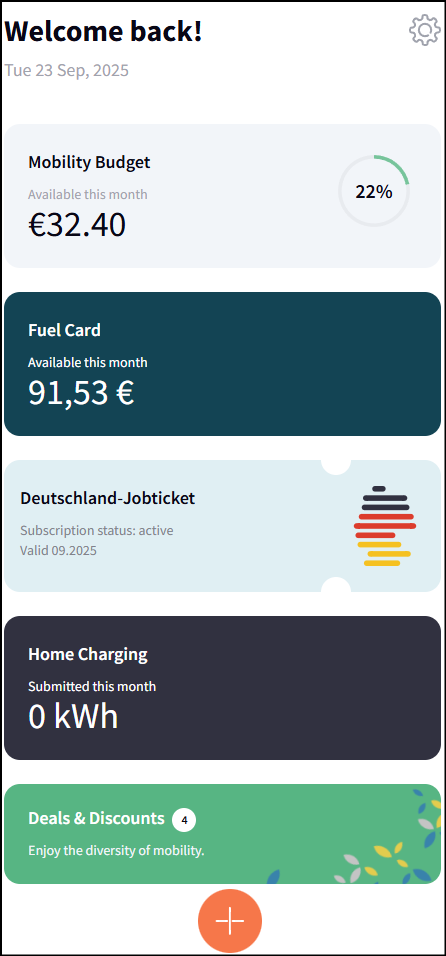
When you log in to the MOBIKO app (PWA), the home screen gives you an overview of your current mobility benefits. Here’s what each section means:
💸 Mobility Budget
Shows the amount you still have available for the current month.
The circle next to it shows, in percent, how much of your budget you’ve already used.
⛽ Fuel Card
If your employer provides you with a digital fuel card, this section displays the available balance for the current month.
🚆 Germany Job Ticket
If you receive a Deutschlandticket via your employer, you’ll find your subscription status and validity period here.
🔌 Home Charging
This section shows how many kilowatt-hours (kWh) you’ve already submitted this month for charging your electric vehicle at home.
🎁 Deals & Discounts
Find exclusive deals and discounts related to mobility – such as bike leasing, sharing services, or wallbox purchases.
✅ Tip:
Clicking on the individual cards often reveals more information or takes you straight to the appropriate submission form.
📸 Sample screenshot:
🚲🚆🚗 Module: Mobility Budget – Overview of Your Monthly Budget & Status
🗒️ Tab 1 – Detailed List of Your Expenses – Main View
🗒️ Detailed Overview of Your Expenses
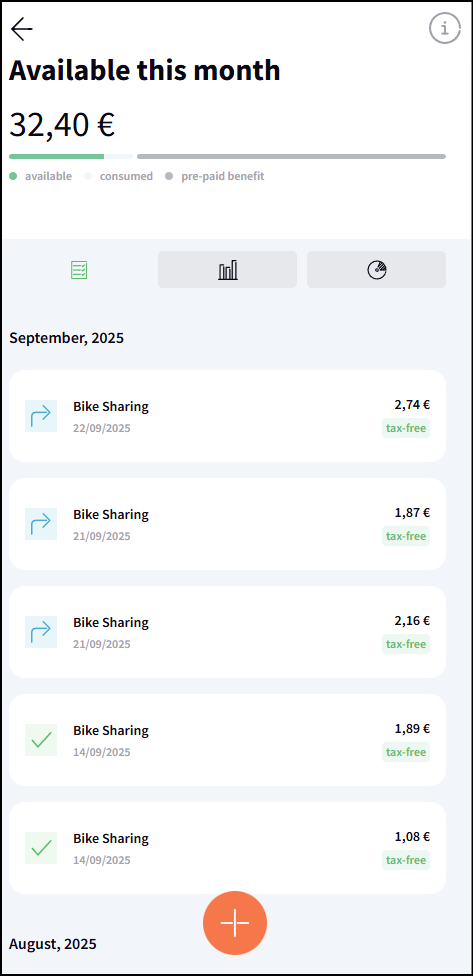
In the “Mobility Budget” section, you’ll not only see your current remaining budget, but also a chronological overview of all mobility expenses you’ve already submitted and had approved.
📸 Sample screenshot:
Budget – Available This Month
Displays the amount you can still use for the current month.
Progress Bar with Legend:
🟢 Green (available): Your remaining budget
⚫️ Gray (consumed): Already spent
⚪️ Light gray (pre-paid benefit): Budget that has already been deducted in advance, e.g. through a company subscription
Monthly Overview Below:
Sorted by month – you can view expenses from the current and previous months.
Each entry includes:
Mobility category (e.g. public transport, bike sharing)
Date of the expense
Reimbursed amount
Tax status (e.g. “tax-free”)
Status icon (e.g. ✔ for approved, ⏳ for pending)
✅ Tip:
Click the “+” symbol to upload a new receipt and assign it to your mobility budget.
📊 Tab 2 – Receipt Status Overview – Side View
📑 Receipt Status Overview
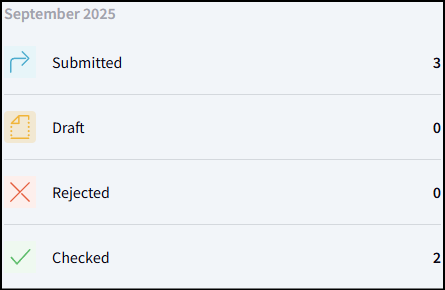
In the 2nd tab of the MOBIKO app, you’ll get a quick overview of all your receipts – whether they are submitted, in progress, saved as drafts, rejected, or already approved.
The following receipt statuses are displayed:
📤 Submitted
Receipts you’ve successfully submitted and are currently being reviewed.
📝 Draft
Receipts you’ve started but not yet submitted – you can edit and submit them at any time.
➡️ Only submitted receipts can be reviewed and approved.
❌ Rejected
Receipts that were not approved – for example, due to incorrect category selection, missing information, or lack of documentation.
👉 Tip: Click on the receipt to see the reason for rejection.
✅ Approved
Receipts that have been fully reviewed and approved – the amount (tax-free or taxable) has already been or will soon be reimbursed.
🧩 Tab 3 – Budget Breakdown & Your Allowed Mobility Categories – Side View
Tab 3 – Budget Breakdown & Your Allowed Mobility Categories
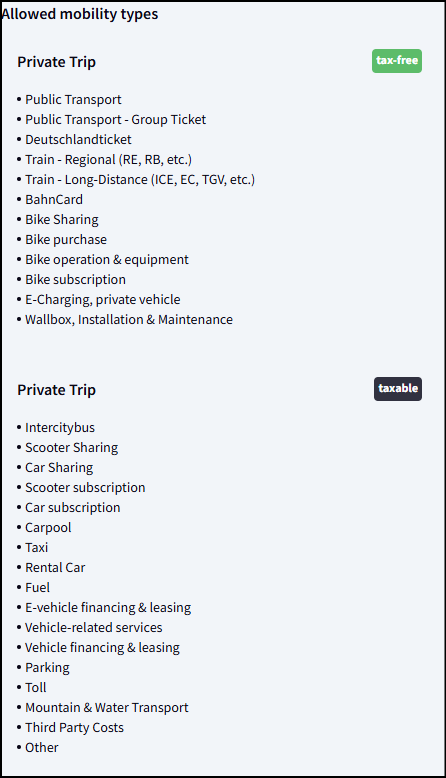
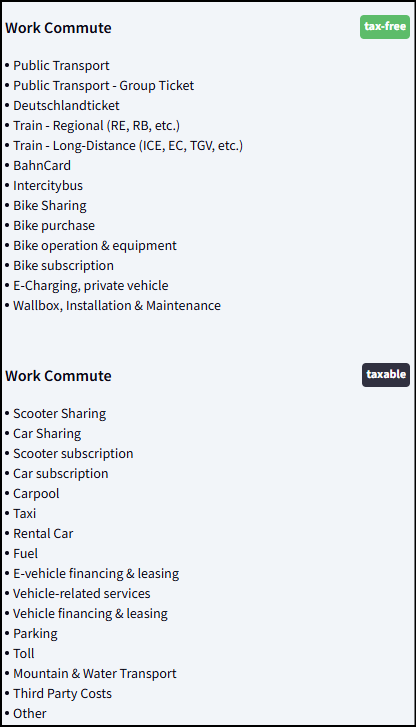
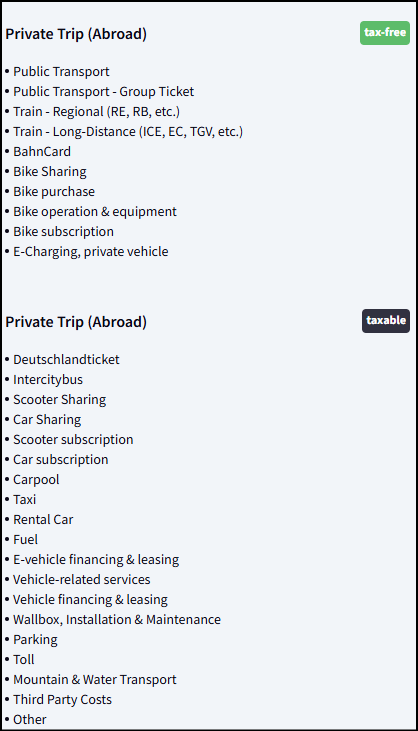
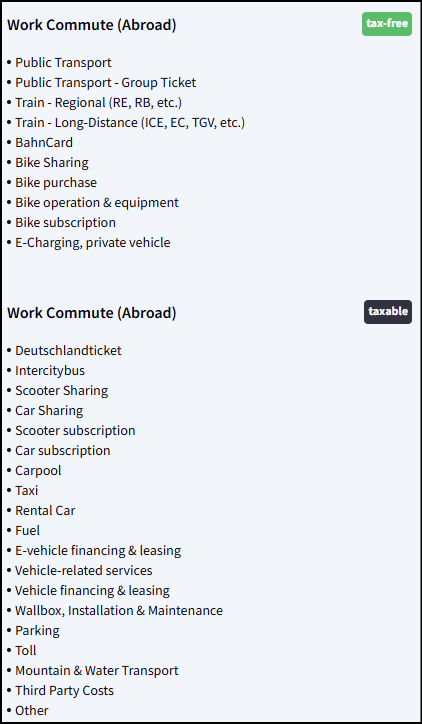
Under the third tab in the MOBIKO app, you will find an overview of all mobility categories your company has approved for you. This way, you can see exactly which types of mobility you can use and charge to your mobility budget.
History of Your Mobility Budget
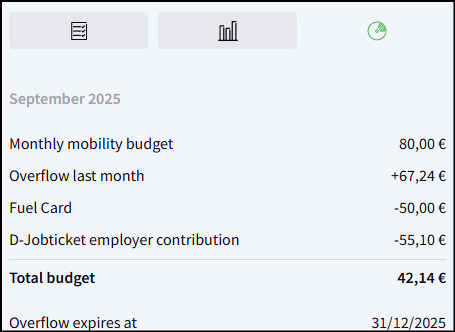
Under "Total Budget," the following are shown:
Your fixed monthly mobility budget
Any carryover from the previous month
Deductions such as fuel card usage or subsidies for the job ticket
Example image:
✅ Your Allowed Mobility Types
Depending on your company’s approval, you will see an overview of the approved mobility types, divided into:
Private trips (tax-free)
Private trips (taxable)
Commute trips (tax-free)
Commute trips (taxable)
Foreign trips with respective tax classification
Important: ALL mobility categories shown in your overview have been approved by your HR department. You can therefore use them without concern — categories not approved will not be displayed.
Example images: