
🔑 Forgot Your Password – What Can I Do?
You can reset your password at any time – directly via the login page of the app or web app.
📌 Important:
-
The registration process and app installation must be completed beforehand.
-
The reset link is valid for 3 hours. If it expires, please repeat the process or contact 👉 support@mobiko.de.
-
The email address your invitation was sent to is also your MOBIKO login email.
📱 In the Mobile App (Smartphone or Laptop/Computer)
-
Open the MOBIKO app on your smartphone or laptop at 👉 https://mobile.mobiko.net
-
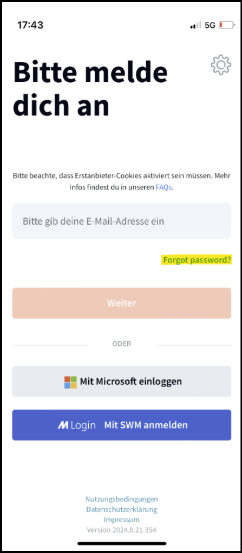
Click on “Forgot password?” (highlighted in yellow in the screenshot):
-
Use the email address you’re registered with (usually your business email), and click “Request email.”
-
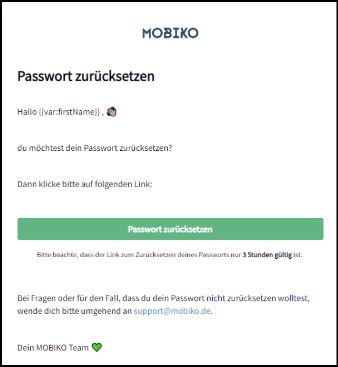
You will receive an email with a link to reset your password within a few minutes.
📌 Note: Please also check your spam folder if you don’t receive the email.
💻 In the Web App (on a Computer)
-
Open the login page: 👉 https://app.mobiko.net
-
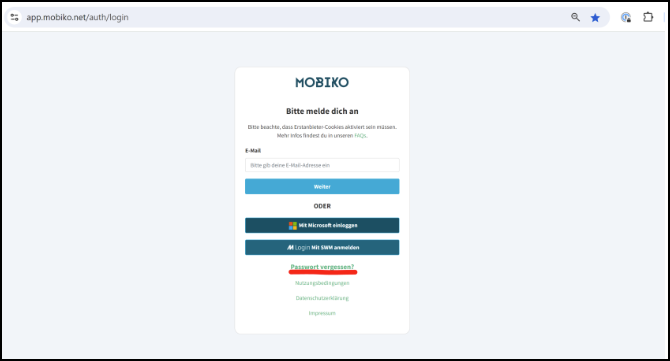
Click on “Forgot password” (marked in red in the screenshot):
-
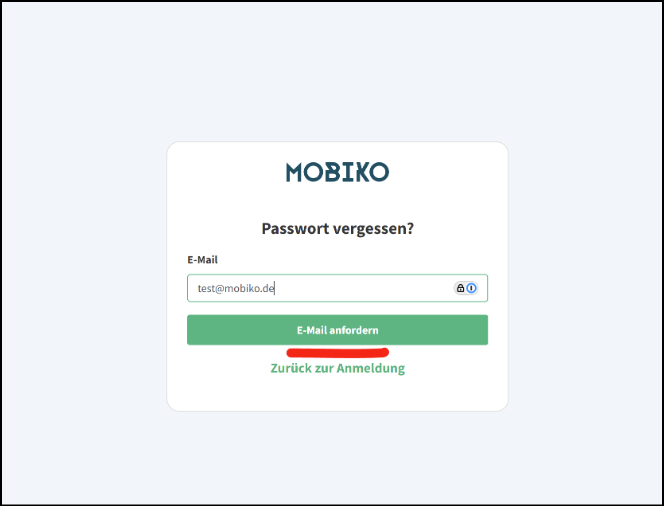
Enter the email address you’re registered with (usually your business email), and click “Request email.”
You’ll also receive an email with the link to reset your password.
📌 Note: Please also check your spam folder if you don’t receive the email.
Why Am I Not Receiving a Password Reset Link?
Question:
I tried to reset my password but didn’t receive a link. Why?
Answer:
If you’re not receiving a password reset email, there could be several reasons:
❌ Incorrect email address used:
You might have entered a different email than the one registered with MOBIKO – e.g. your private instead of your business email.
👉 Please double-check that you’ve entered the correct address.
🔐 Single Sign-On (SSO) is enabled:
Some accounts are set up with Single Sign-On (SSO). In that case, no reset link will be sent via email.
👉 Instead, you can log in directly using the “Sign in with Microsoft” or a similar SSO button – no password required.
💡 Tip:
If you’re unsure which email is stored in your profile or whether SSO is active, please contact your administrator or the MOBIKO Support Team: 👉 support@mobiko.de