
Login – How Do I Sign In?
1. Login option: How do I log in to the MOBIKO app?
- Open the MOBIKO app. MOBIKO app installation – How do I install the app on my smartphone or laptop?
- Follow the instructions on the screen.
- Log in with the email address you used during registration and your chosen password.
Important: Logging in via SSO (single sign-on) using the Microsoft button is only possible if your employer has activated this function.
2. Login option: How do I log in to MOBIKO on my laptop?
There are two ways to use MOBIKO on your laptop:
- Mobile app version (PWA): If you have installed the mobile app version on your computer, log in at https://mobile.mobiko.net/login. See App installation.
- Web app: Alternatively, you can log in at https://app.mobiko.net/auth/login if you have not yet installed the mobile version.
Important: Registration via the web app will soon be discontinued. In future, only the mobile version (PWA) will be supported. We will inform you about it.
3. Login option: NEW: Login with passkeys (Face ID, fingerprint, device PIN) - How does it work?
FAQ: Which email address is my login email address?
FAQ: I can't log in – what can I do?
FAQ: I only see the message “Maintenance work” in the login screen. How can I still upload my receipts?
Please make sure to install the MOBIKO app (PWA) on your smartphone or laptop first to enjoy full access to all features.
💻 How do I log in on a computer or laptop?
There are two ways to access MOBIKO from your computer:
- Mobile App Version (PWA): If you’ve installed the mobile app version on your desktop, go to 👉 https://mobile.mobiko.net to log in.
- Web App: Alternatively, you can still log in via 👉 https://app.mobiko.net/auth/login, if you haven’t installed the mobile version yet.
⚠️ Important:
The web app login will be discontinued soon. In the future, only the mobile version (PWA) will be supported.
🖥️ First-time login on desktop:
-
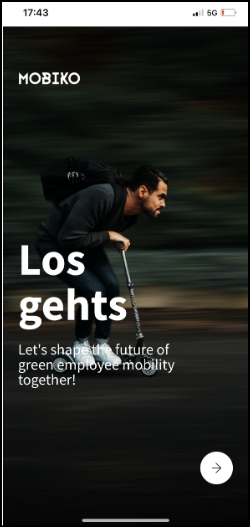
When logging in for the first time at app.mobiko.net, a short onboarding tutorial titled “Let’s go” will appear.
-
You can skip it using the arrow in the bottom right corner.
-
Enter your business email address, then your MOBIKO password.
🔐 SSO Login (e.g., Sign in with Microsoft)
Single Sign-On (SSO) is only available if your employer has activated this feature.
If you’re unsure whether SSO is enabled for you, please contact MOBIKO Support at 👉 support@mobiko.de.
📱 How do I log in on a smartphone?
-
Open the MOBIKO app on your smartphone.
-
Follow the on-screen instructions.
-
Log in using your business email address (or sometimes your private email address) and the password you’ve set.
⚠️ Note:
SSO login (e.g., Sign in with Microsoft) is only available if your company has enabled it.
If you’re unsure whether SSO is activated, feel free to contact MOBIKO Support or your HR department.
❌ I can't log in – What can I do?
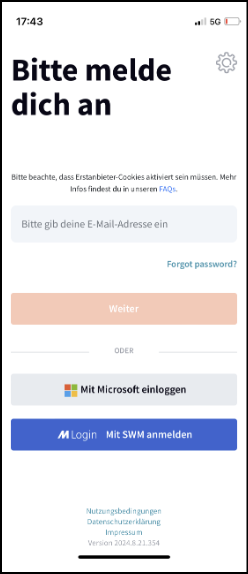
Use the “Forgot Password” function to request a reset link.
-
In the MOBIKO app, the button appears directly below the email input field.
-
In the web app (https://app.mobiko.net/auth/login), the button is located further down – below the "Sign in with Microsoft" or "Sign in with M" options.
You’ll receive a link via email to reset your password.
🤔 Why can't I log in?
If you're not receiving the password reset email or unable to log in, there may be several reasons:
📧 Wrong email address used
You may have entered a different email address than the one registered with MOBIKO – for example, your private instead of your company email.
👉 Please make sure you’re using the correct email address.
🔐 Single Sign-On (SSO) is enabled
Some accounts are configured with SSO. In this case, you won’t receive a reset link via email.
👉 Instead, use the “Sign in with Microsoft” or other SSO login button to access your account without a password.
If you’re still unsure, please contact MOBIKO Support or your HR department for assistance.