📲 MOBIKO PWA Installation – How Do I Install It on My Smartphone or Computer/Laptop?
MOBIKO does not use a traditional app from the App Store. Instead, we offer a Progressive Web App (PWA).
This app can be installed directly from your browser onto your home screen and works just like a regular app – with the added benefit of faster updates.
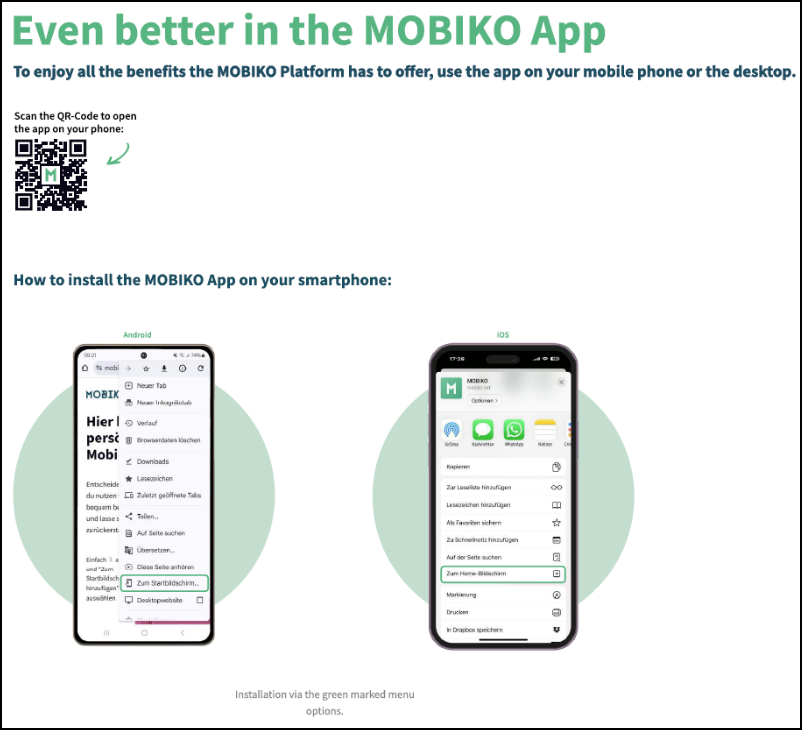
1. Installing the App on Your Smartphone (PWA)
🔹 For iPhones (iOS):
-
Open Safari on your iPhone.
-
Go to 👉 https://mobile.mobiko.net
-
Tap the share icon (a square with an arrow pointing up).
-
Select “Add to Home Screen.”
-
Tap “Add” – and you’re done!
🎥 Video tutorial: Watch the iOS installation guide on YouTube.
🔹 For Android devices:
-
Open Google Chrome.
-
Go to 👉 https://mobile.mobiko.net
-
Tap the three-dot menu (top right corner).
-
Select “Add to Home screen.”
-
Tap “Install” – and you’re done!
🎥 Video tutorial: Watch the Android installation guide on YouTube.
Once installed, you’ll find the MOBIKO app directly on your home screen – just like any other app.
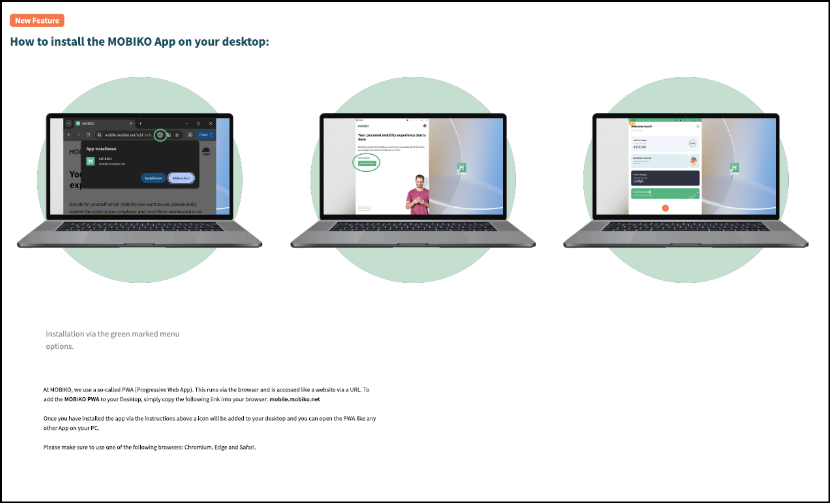
2. Installing the App on Your Laptop or Desktop (PWA)
Want to use MOBIKO on your computer as well? You can install it as a Progressive Web App (PWA) on your desktop for quick access to all available modules.
💻 Here’s how:
-
Open the site:
On your laptop/PC browser, go to 👉 https://mobile.mobiko.net -
Click the install icon:
When the page loads, a small computer or “+” icon will appear in the browser’s address bar (usually top right).
Click on it. (This icon may be highlighted in green in the image.) -
Confirm installation:
A pop-up will appear with an “Install” button → Click Install. -
App appears on desktop:
MOBIKO will now be installed like a regular program, with its own desktop icon. -
Start the app:
Click the icon to launch the app – just like you would with any other application on your computer.
🔧 System Requirements:
To install the PWA, please use one of the following browsers:
✅ Google Chrome
✅ Microsoft Edge
✅ Safari (on macOS)